
App settings
You can manage various settings related to your ACF installation from the Settings item in the app’s left-hand navigation. The settings are grouped into sections, with the section name and a short description on the left and the actual controls on the right.
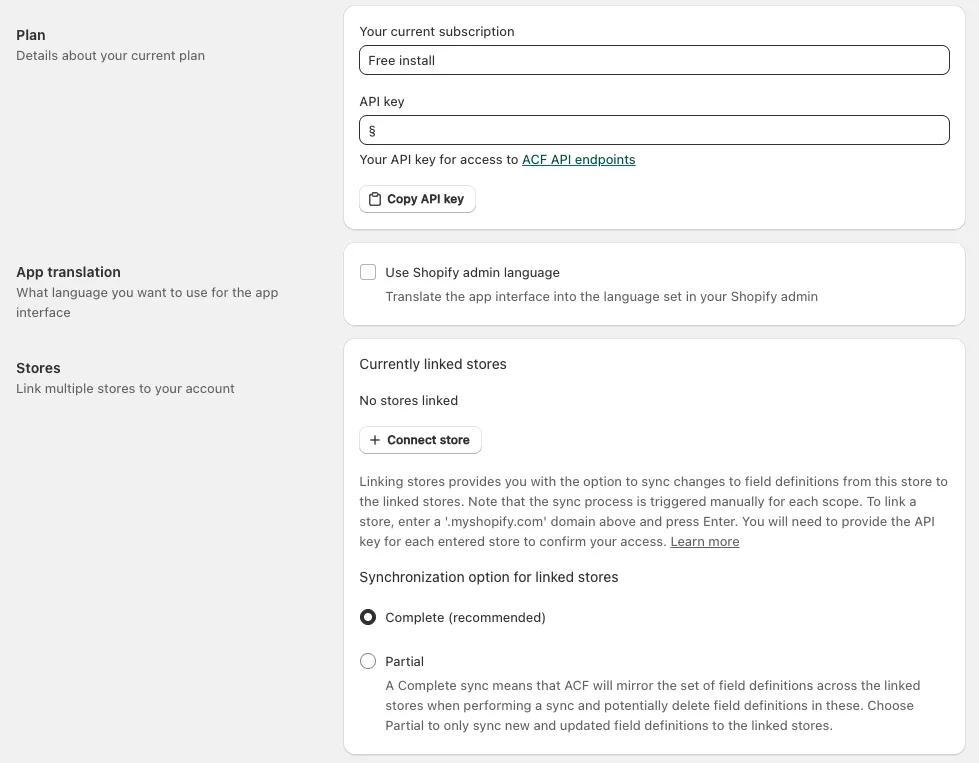
Shows details about your current plan.
- Your current subscription displays the plan your store is currently on.
- API key is the key used for access to the ACF API endpoints. Use the Copy API key button to copy it to your clipboard. Treat this key as a secret - anyone holding it can read and write your custom field data.
App translation
Section titled “App translation”Controls what language is used for the app interface.
- Use Shopify admin language translates the ACF interface into the language set in your Shopify admin. Turn it off if you would rather keep the app in its default language.
Stores
Section titled “Stores”Lets you link multiple stores to your account so field definitions can be kept in sync.
- Currently linked stores lists every store already connected, each with a delete icon to unlink it.
- Connect store adds a new one. It opens a form asking for the Store domain (the target store’s
.myshopify.comaddress) and that store’s Store API key, which confirms your access - you’ll find it under Plan in that store’s own settings. Click Link store to confirm. See Linking multiple stores for the full walkthrough. - Synchronization option for linked stores decides how much a sync changes in the target stores:
- Complete (recommended): ACF mirrors the set of field definitions across the linked stores, and may delete field definitions that no longer exist in the source store.
- Partial: only new and updated field definitions are synced to the linked stores, and nothing is deleted.
Note that the sync process is triggered manually for each scope, so linking stores enables syncing rather than performing it automatically.
Multi language fields
Section titled “Multi language fields”Configures the languages you want to use in your store.
- Multiple languages setup holds the list of languages, shown as removable tags, with a Select languages dropdown to add more. These are the options presented in the editor for fields using the multiple languages type. Reorder them in your preferred order for editing, with your primary language first.
- DeepL API key connects ACF to DeepL so you can use its translation services from within the app. You need an active DeepL API subscription and must enter that key here.
- I’m using the free DeepL API plan tells ACF to use the free DeepL API tier instead of the paid one.
Further settings
Section titled “Further settings”Further down the settings page you can also change the split character used by the automatic tagging feature, adjust the behaviour of HTML fields and dropdown menus in the editor, and enable automatic handling of large sets of layouts.