
Metaobject Definitions
Accentuate enables you to fully create and manage Metaobject definitions. Open the app and either click the Metaobject card on your dashboard, or switch the scope selector in the page’s top toolbar to Metaobject. Either route takes you to the META page, which is titled Metaobject definitions.
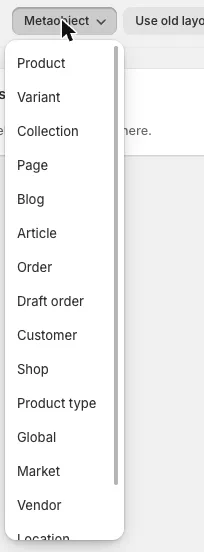
The toolbar above the page stays with you the whole time you work on your definitions:

- Metaobject - the scope selector. Everything else on the page acts on the scope selected here.
- Use old layout - switches back to the previous version of the editor if you preferred it.
- Import / Export - bulk transfer of your instance values. See Metaobject export / import.
- Sync - overwrite the definitions on a store you have linked to this one.
- Edit metaobjects - jump straight into the editor for one of your definitions to manage its instances.
Below the toolbar sits the definition list on the left and the Metaobject details panel on the right. The details panel is empty until you click a definition or a field - it is where every setting is edited now.
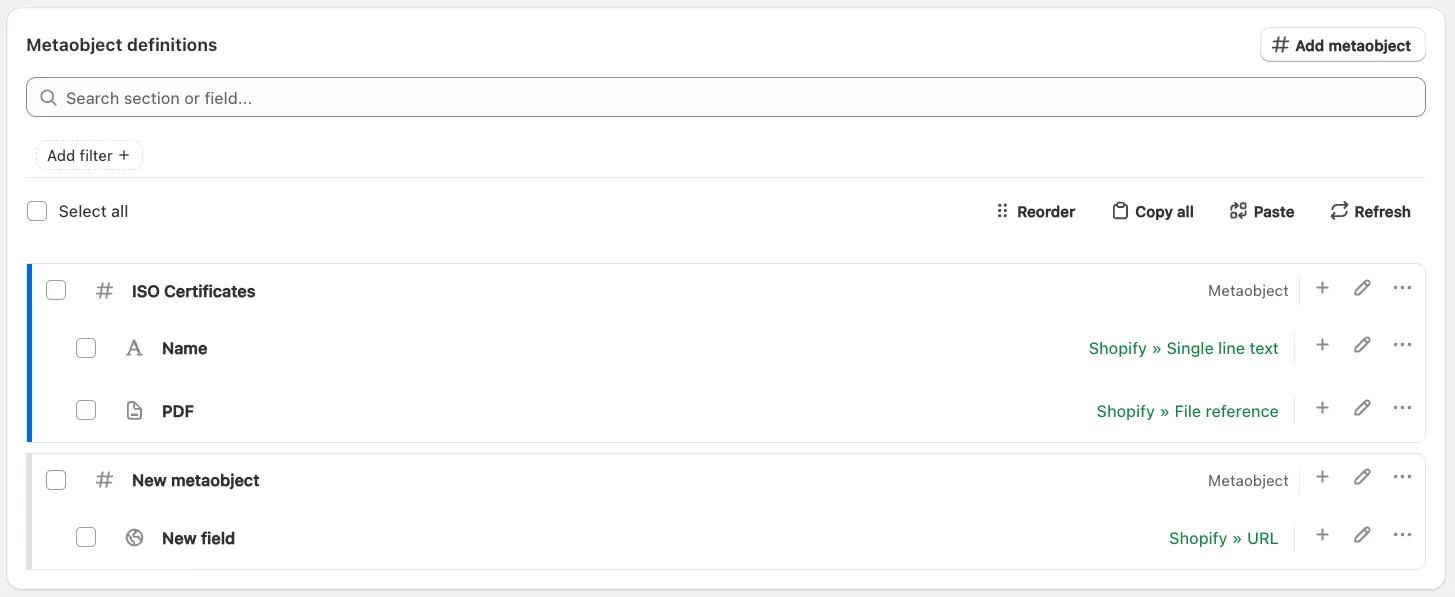
The row above the list holds the actions that apply to the whole list: Reorder, Copy all, Paste and Refresh. The search box and Add filter narrow the list down when a store has grown to many definitions.
Adding your first Metaobject definition
Section titled “Adding your first Metaobject definition”Click Add metaobject. Accentuate appends a new New metaobject row to the list, switches the list into reorder mode so you can drag the new definition where you want it, and opens the Metaobject details panel for it on the right.
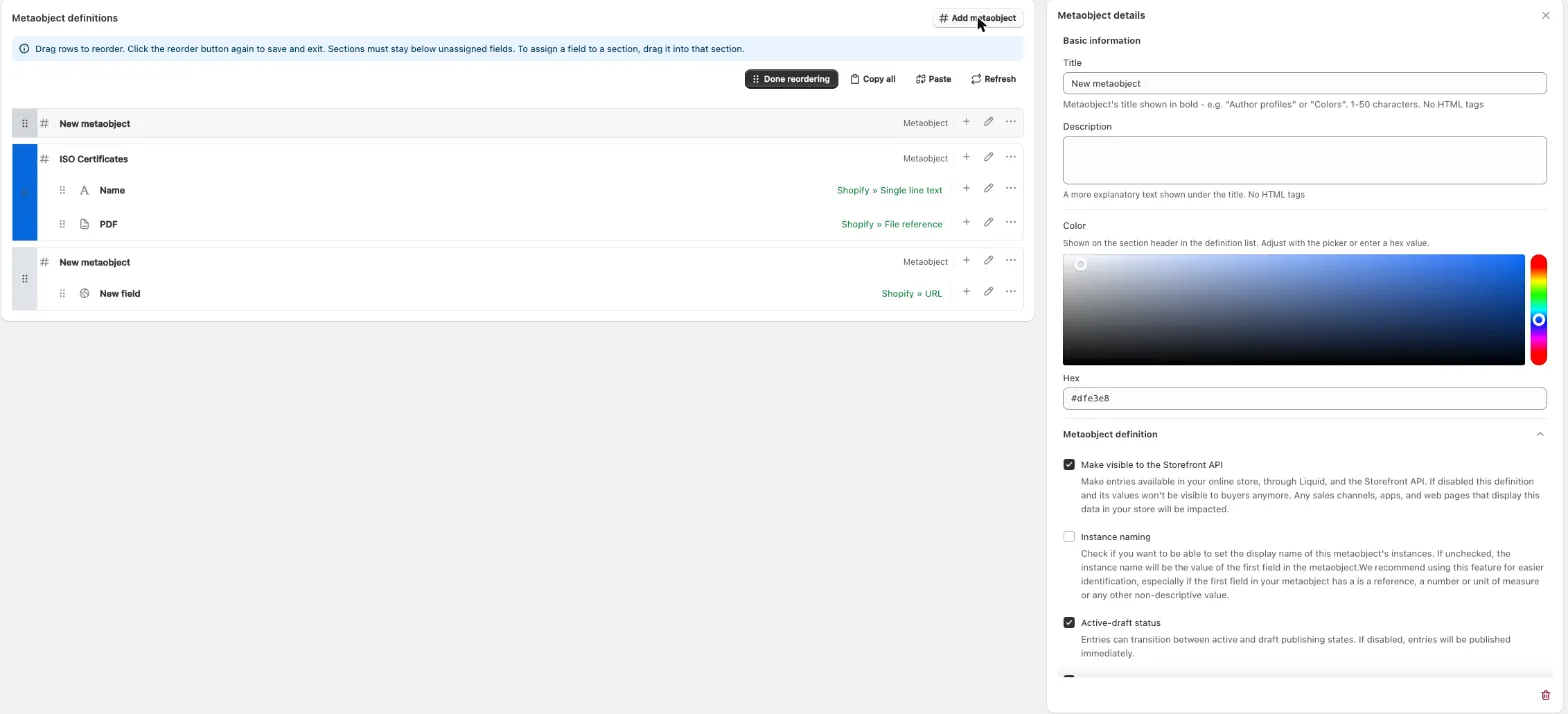
Start with Basic information:
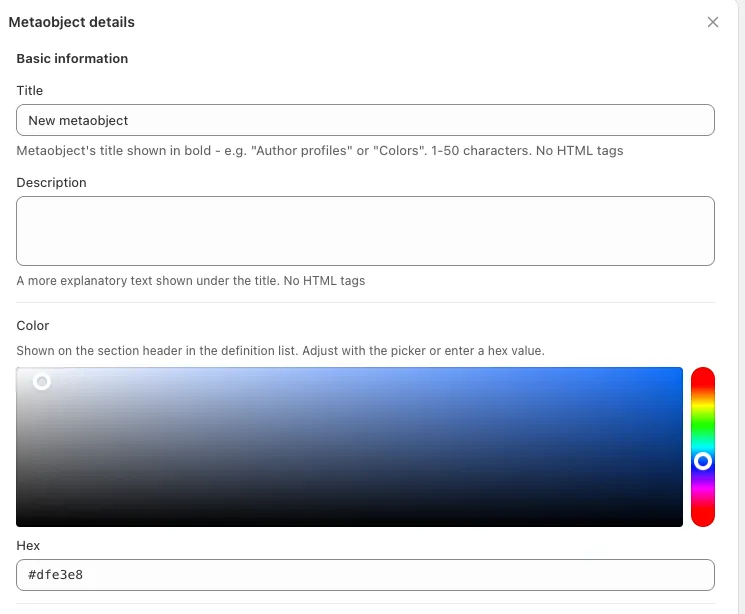
- Title - the name shown in bold in the definition list, e.g. “Author profiles” or “Colors”. 1-50 characters, no HTML tags.
- Description - a more explanatory text shown under the title. No HTML tags.
- Color / Hex - the colour of the section header in the definition list. Pick it with the picker or type a hex value. Colour-coding your definitions makes a long list much easier to scan.
Metaobject definition settings
Section titled “Metaobject definition settings”The Metaobject definition block of the details panel holds the behaviour of the definition itself:
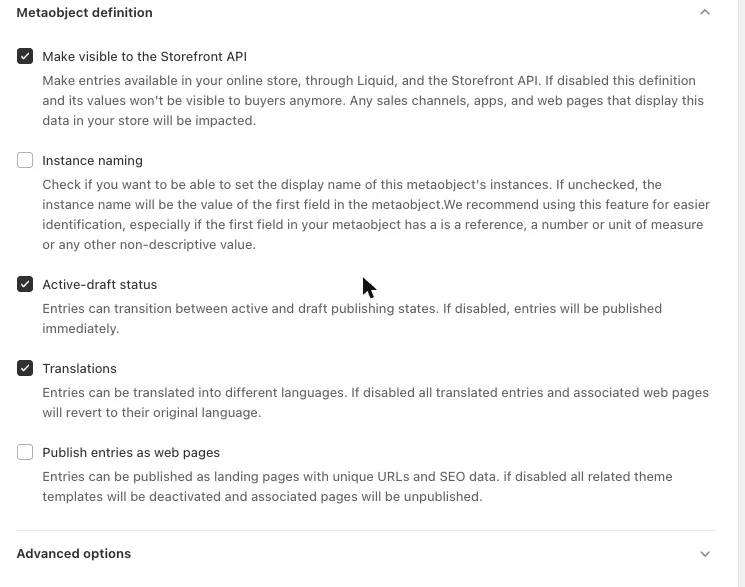
- Make visible to the Storefront API - makes entries available in your online store, through Liquid and the Storefront API. Disabling it hides the definition and its values from buyers, and any sales channel, app or web page displaying that data is impacted.
- Instance naming - lets you set the display name of this metaobject’s instances yourself. See Instance naming below.
- Active-draft status - entries can transition between active and draft publishing states. If disabled, entries are published immediately.
- Translations - entries can be translated into different languages. Disabling this reverts all translated entries and associated web pages to their original language.
- Publish entries as web pages - entries can be published as landing pages with unique URLs and SEO data. Disabling it deactivates all related theme templates and unpublishes the associated pages.
Nothing is written to Shopify until you press Save in the Unsaved changes bar at the top of the page. Discard throws the changes away. The trash icon in the bottom-right corner of the details panel deletes the definition you currently have open.
Adding fields to your definition
Section titled “Adding fields to your definition”The base definition only holds settings - it is the fields that hold your data. Every row in the list carries three actions on its right-hand side:
- + - add a field to that definition.
- pencil - open that row in the Metaobject details panel.
- ⋯ - the rest of the actions available for that row.
Click + on your definition to add a field, then fill in its settings in the details panel exactly the way you filled in the definition. Accentuate supports ALL Shopify native types along with additional settings like whether the field is required and validations for the field. The list shows the resolved type next to each field, for example Shopify » Single line text or Shopify » File reference, so you can see at a glance what a definition is made of.
Pasting fields
Section titled “Pasting fields”If you have already set up a field somewhere else in your store you can copy it and use Paste in the list toolbar instead of building it from scratch again. Keep in mind that you can only use Shopify native field types for Metaobjects.
Quality of life improvements
Section titled “Quality of life improvements”We added a couple of options to make your life easier. Be sure to skim through this section, as some of these options are quite beneficial but may have gone unnoticed.
Instance naming
Section titled “Instance naming”By default, Shopify uses the value of the first field in your Metaobject definition as the display name for that instance. A lot of the time this leads to unhelpful and repetitive names. Ticking Instance naming in the details panel adds a single-line text field at the top of your definition that only appears in the editor, so you can control the display name of your instances and know your way around your data.
This is especially worth turning on when the first field in your metaobject is a reference, a number, a unit of measure, or anything else non-descriptive.
Directly going to create a new instance
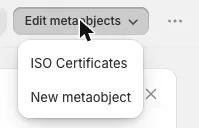
Section titled “Directly going to create a new instance”The Edit metaobjects dropdown in the toolbar lists every definition in your store and takes you straight into the editor for the one you pick, so you can add an instance without hunting for it first.
Copy-pasting definitions across stores
Section titled “Copy-pasting definitions across stores”Copy all in the list toolbar puts your definitions on the clipboard, and Paste drops them into another store - or back into the same one if you just want a second definition with the same properties. This is handy if you are setting up a second store and want to transfer a Metaobject definition to the new store.
Save and sync across stores
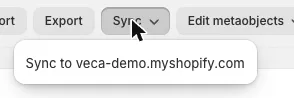
Section titled “Save and sync across stores”The logical evolution of the copy button. Sync in the toolbar names the store you have linked - Sync to your-store.myshopify.com - and overwrites the definitions there with the ones on this store. Be careful, as this may result in a loss of data. Our guide on linking multiple stores goes into more detail regarding this feature.
Exporting instances of one definition
Section titled “Exporting instances of one definition”Our Import/Export is a great feature that helps many merchants update their data in bulk or transfer data between stores with ease. You can do so with Metaobjects as well - Export in the toolbar lets you narrow the export down to a selection of definitions instead of exporting everything. If you would like to learn more about it, read the Metaobject export / import guide.
Convert existing global Metafield sections into Metaobject definitions
Section titled “Convert existing global Metafield sections into Metaobject definitions”Before Metaobjects existed, having data available globally meant setting up shop or global Metafields. Accentuate offered a neat solution with repeatable global sections - you could organise data into sections and use that as a template for your global data. That is EXACTLY what Metaobjects do, so we automated the process for merchants who want to switch over to the Shopify native variant. Open the Global scope, find the section you want to convert, and start the conversion from that section’s ⋯ menu. Accentuate transforms the Accentuate native types into matching Shopify types without you needing to worry.
Please keep in mind while using this feature that Accentuate offers some features that Shopify still does not have, so converting fields into their Shopify native variants may not be perfect.
Liquid code templates
Section titled “Liquid code templates”Accentuate generates handy Liquid code templates so you can easily integrate your Metaobjects into your storefront. You will find the template for a definition in that definition’s ⋯ menu in the list.
Next steps:
Section titled “Next steps:”You now know everything you need to manage your Metaobject definitions using Accentuate. You may want to read more about: