
Page Redirections
The Page Redirections theme block allows you to automatically redirect visitors from a specific page to another destination after a defined delay. You can optionally display a custom message and a countdown before the redirect happens.
Before You Start
Section titled “Before You Start”We always recommend duplicating your theme before making any changes.
Online Store → Themes → Duplicate
Work on the copied theme to avoid affecting your live store.
How to Enable Page Redirections
Section titled “How to Enable Page Redirections”Step 1: Open the Theme Editor
Section titled “Step 1: Open the Theme Editor”Go to:
Shopify Admin → Online Store → Themes → Customize
Make sure you are editing the duplicated theme (recommended).
Step 2: Select the Page Where Redirection Should Apply
Section titled “Step 2: Select the Page Where Redirection Should Apply”In the top navigation dropdown of the Theme Editor, choose the page/template where you want the redirect to trigger.
Step 3: Enable Accentuate in App Embeds
Section titled “Step 3: Enable Accentuate in App Embeds”- In the left-hand menu of the Theme Editor, click the third icon (App Embeds).
- Find Accentuate.
- Toggle it ON.
This step is required for the extension to work.
Step 4: Add the Page Redirections Block
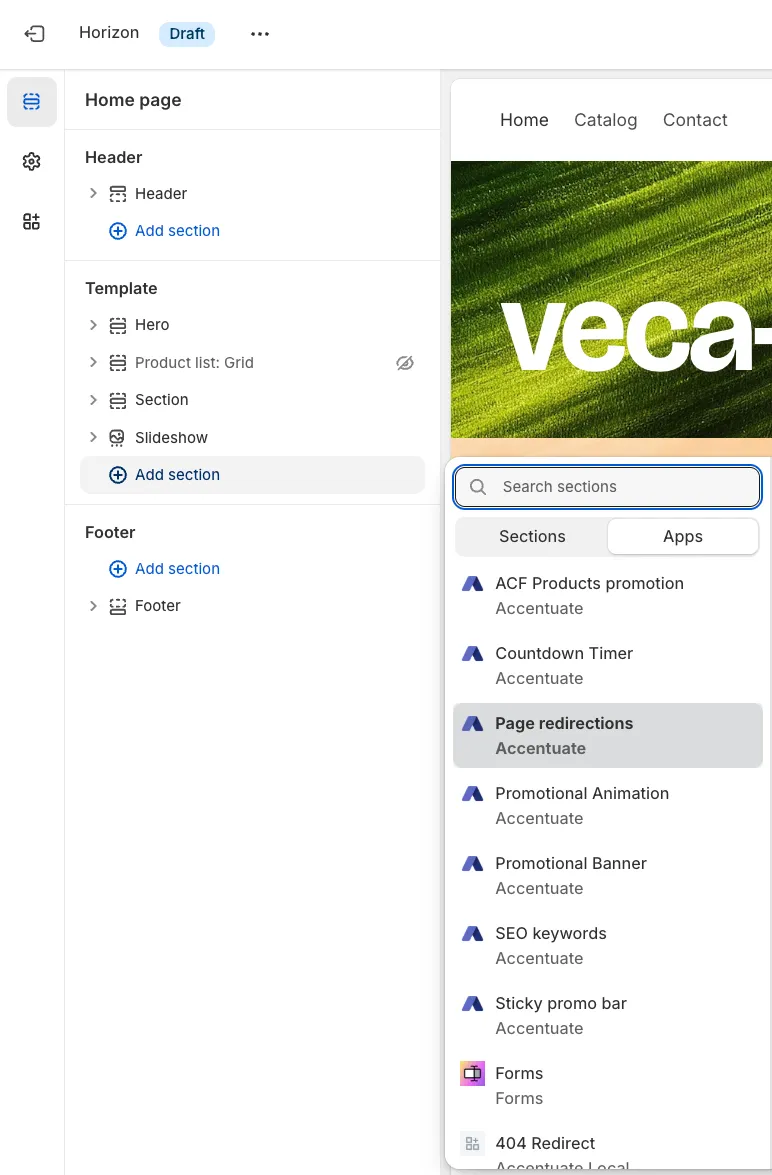
Section titled “Step 4: Add the Page Redirections Block”- Return to the first icon (Sections) in the Theme Editor.
- Click Add block.
- From the Apps list, select Page Redirections (Accentuate).
A new configuration panel will open on the right side.
Configuration Options
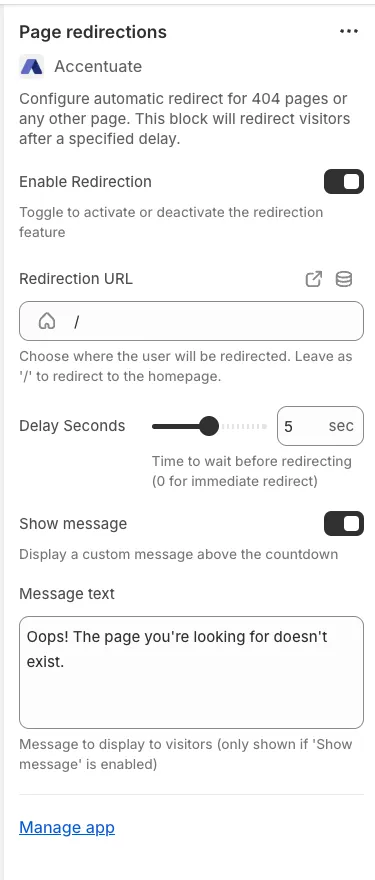
Section titled “Configuration Options”1. Enable Redirection
Section titled “1. Enable Redirection”Toggle Enable Redirection to activate or deactivate the redirect functionality.
2. Redirection URL
Section titled “2. Redirection URL”Choose where visitors will be redirected.
You can:
- Select a Collection
- Select a Product
- Select a Page
- Select a Blog or Blog Post
Leave as / to redirect to the homepage.
3. Delay Seconds
Section titled “3. Delay Seconds”Set how many seconds the system should wait before redirecting.
- Default: 5 seconds
- Set to 0 for immediate redirect
A countdown will be displayed if a message is enabled.
4. Show Message (Optional)
Section titled “4. Show Message (Optional)”Toggle Show message if you want to display a custom message above the countdown.
Example default text:
Oops! The page you’re looking for doesn’t exist.
You can fully customize this message.