
Bulk Editor for Shopify Product Metafields
The Bulk Editor in Accentuate Custom Fields shows your Shopify product metafields as a spreadsheet. Each row is a product and each column is a metafield. You can filter your catalog down to the products you need, then read, edit, paste and fill values across many products at once. Your changes are saved to Shopify in one go.
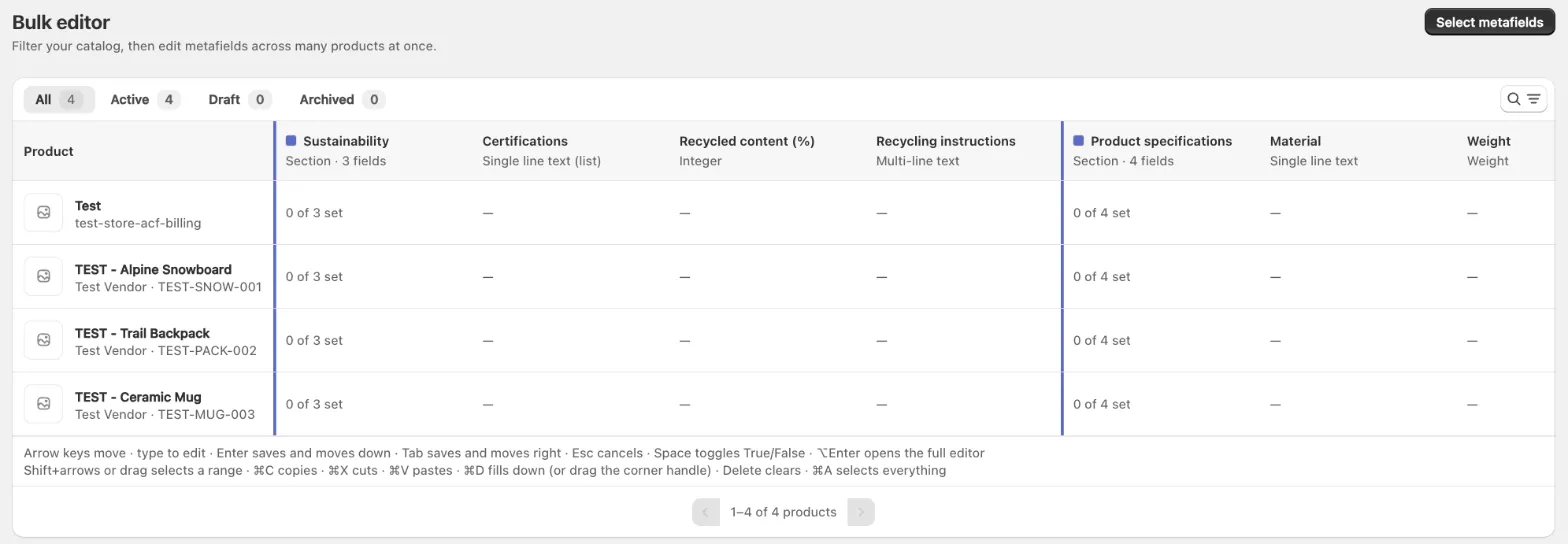
Why use the Bulk Editor
Section titled “Why use the Bulk Editor”Editing metafields one product at a time is fine for a few products, but it gets slow and error-prone across a whole catalog. The Bulk Editor fixes the most common problems:
| The problem | How the Bulk Editor solves it |
|---|---|
| Too many clicks. Updating one field on 40 products means opening 40 products, one after another. | Every product is a row. You type straight into the cell and move on with the arrow keys, Enter or Tab. |
| No overview. It’s hard to see which products are missing a value, or which values don’t match. | Your products and metafields sit side by side, so gaps and inconsistencies are easy to spot. |
| Round-tripping through spreadsheets. Exporting to CSV, editing in Excel and importing again takes time and can go wrong. | You can copy and paste directly between the Bulk Editor and Excel or Google Sheets, without exporting or importing. |
| Repetitive data entry. Entering the same value on many products by hand. | Paste one value into a whole selection, or fill it down a column with a single shortcut. |
| Bad data reaching your store. A typo or a value in the wrong format only shows up on the storefront. | Every value is checked against the rules on its metafield definition before anything is saved. Problem cells are highlighted and explained. |
| All-or-nothing saves. One bad value can make you lose a whole batch of work. | Valid changes are saved and invalid ones are kept aside for you to fix. Nothing you typed is lost. |
Before you start
Section titled “Before you start”- Plan: The Bulk Editor is included in the Business plan and higher. On other plans, the page shows a preview with sample products so you can see how it works. Editing is turned off in the preview.
- Products only (for now): The Bulk Editor works with product metafields. Bulk editing for other resources (collections, pages, customers and so on) opens the classic bulk editor.
- Metafield definitions: Columns come from your product metafield definitions. If you haven’t created any yet, the page asks you to create some first.
How to open it
Section titled “How to open it”Under the Accentuate navigation links, choose Bulk editor.
A quick tour of the page
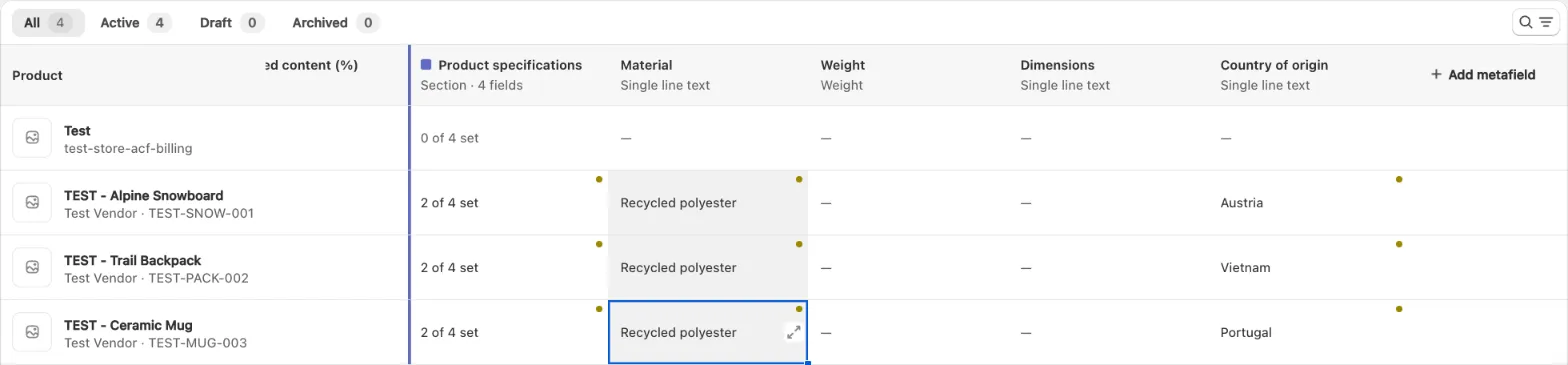
Section titled “A quick tour of the page”- Select metafields: pick which metafield columns the grid shows.
- Status tabs: All, Active, Draft and Archived, each with a product count.
- Search and filters: the search icon to the right of the status tabs opens a search box and filters, so you can narrow the list by keyword, status, vendor, product type, tag or collection.
- Product column: the product’s image and title, with its vendor and SKU underneath. This column stays in place while you scroll sideways.
- Metafield columns: one column per metafield, with the field’s name and type in the header.
- Shortcut hints: a reminder of the most useful keyboard shortcuts, shown below the grid.
- Editor panel: a floating window for fields that need more than a text box, such as references, rich text or uploads.
- Pagination: products load 50 at a time.
- Save bar: appears as soon as you have unsaved changes.
Step 1: Find the products you want to edit
Section titled “Step 1: Find the products you want to edit”Status tabs
Section titled “Status tabs”Use the tabs at the top to switch between All, Active, Draft and Archived products. The number on each tab is the total number of products in your store with that status.
Search
Section titled “Search”Click the search icon to the right of the status tabs to open the search bar. Type in the Search products box to find products by keyword. Results update automatically as you type.
Filters
Section titled “Filters”The filters sit just below the search box. Click a filter to pick one or more values and narrow the list further:
| Filter | What you can pick |
|---|---|
| Status | Active, Draft or Archived |
| Vendor | One or more vendors |
| Product type | One or more product types |
| Tag | One or more tags |
| Collection | One collection |
Filters combine with each other. For example, Vendor: Acme plus Tag: summer shows only Acme products tagged summer. If you pick several values in one filter (for example, two vendors), products that match any of them are shown.
An active filter is shown with its value, for example Vendor: Acme. To remove one filter, click the × on it. To start over, use Clear all. Clicking Cancel closes the search bar but keeps your filters applied.

Moving between pages
Section titled “Moving between pages”Products are shown 50 per page. Use the arrows at the bottom of the grid to move between pages. The label shows where you are, for example 51–100 of 812 products.
Unsaved edits are kept when you change pages, search or filters. You can edit products on page 1, move to page 3, edit more, and save everything together.
Step 2: Choose which metafields to show
Section titled “Step 2: Choose which metafields to show”By default the grid shows every product metafield it can display. If you only want to work with a few fields, narrow the columns down:
- Click Select metafields at the top of the page.
- Search for a field, or browse the list. Fields are grouped by their section. Click the arrow next to a section to see its fields, along with each field’s namespace and key and its type. Selecting a section’s checkbox selects all of the fields inside it.
- Tick the fields you want. Use All metafields to select or clear everything at once.
- Click Apply selection.
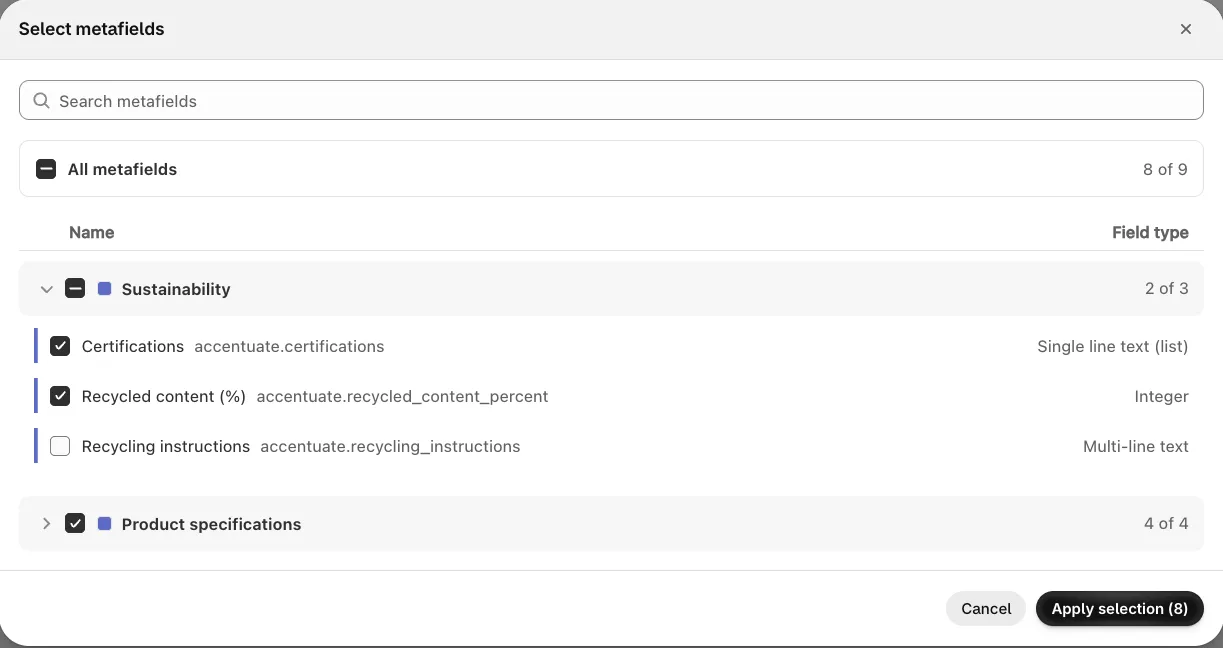
When columns are hidden, the button shows how many are visible, for example Select metafields (6 of 24). You can also click Add metafield at the end of the grid to open the same window.
Your column choice is remembered in this browser, so it’s already in place the next time you open the Bulk Editor.
Section columns
Section titled “Section columns”Besides the individual fields, each section can be shown as one column. Clicking a cell in a section column opens all of that section’s fields together in the editor panel. The cell itself shows how many fields are filled in, for example 3 of 5 set.
Fields that can’t be shown as columns
Section titled “Fields that can’t be shown as columns”Some fields appear greyed out in the list, with the note Not supported in the Bulk Editor yet. See Good to know for the full list.
Step 3: Edit values
Section titled “Step 3: Edit values”There are two ways to edit a value. Simple values are typed straight into the grid. Richer values are edited in the editor panel.
Editing in the grid
Section titled “Editing in the grid”Plain values can be edited like a spreadsheet: single-line text, multi-line text, numbers, URLs, colors, dates and true/false fields.
- Click a cell, or move to it with the arrow keys.
- Start typing. You don’t need to open anything first.
- Press Enter to confirm and move down, or Tab to confirm and move right. Press Esc to cancel.
A few field types work slightly differently:
- Multi-line text: press Shift + Enter to add a line break.
- True/False: press Space to toggle the value, or type T/Y/1 for true and F/N/0 for false.
- Date: type the date in the same format the cell shows. The panel also offers a calendar.
- Color: type a hex code such as
#1a1a1a. The panel also offers a color picker.
Edited cells are marked with a dot in their top-right corner until you save, so you can always see what has changed. Section columns update their count straight away, for example from 0 of 4 set to 2 of 4 set.
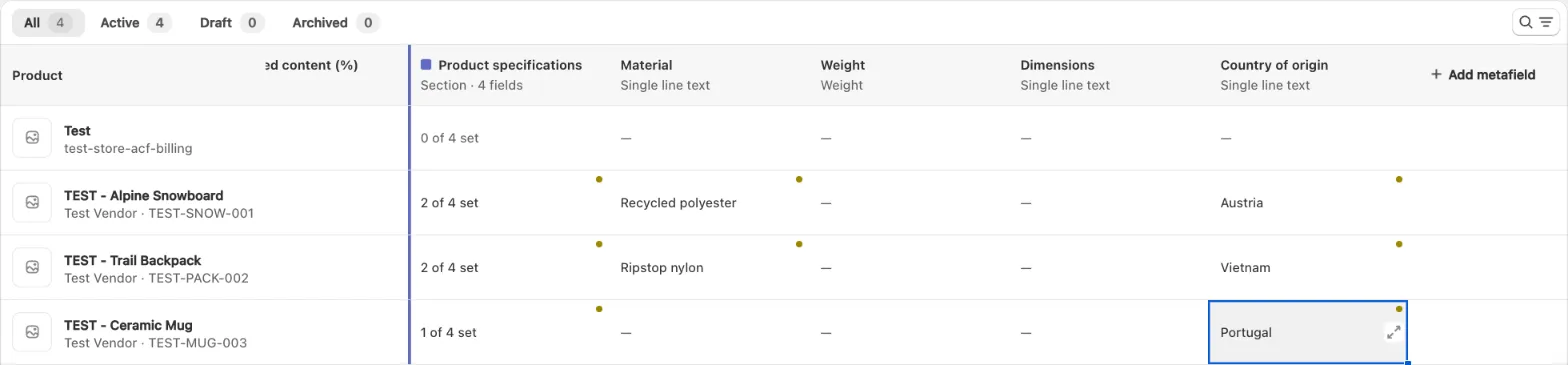
Editing in the editor panel
Section titled “Editing in the editor panel”Fields that need more than a text box open in the editor panel. This includes references, selections, tags, lists, rich text, JSON, images and media. You can open the panel in any of these ways:
- click a cell whose value can’t be typed in the grid,
- press Enter on such a cell,
- press Alt + Enter (Option + Enter on Mac) on any cell, or
- click the expand button that appears on the selected cell.
The panel shows which field you’re editing in its title, and the product under Currently editing product. From there you can:
- change the value with the right tool for the field, such as a resource picker, a text editor, a list of values or an upload area,
- remove the value with Clear value,
- move to the previous or next product with the arrows next to the product name, without closing the panel, so you can work down a column quickly.
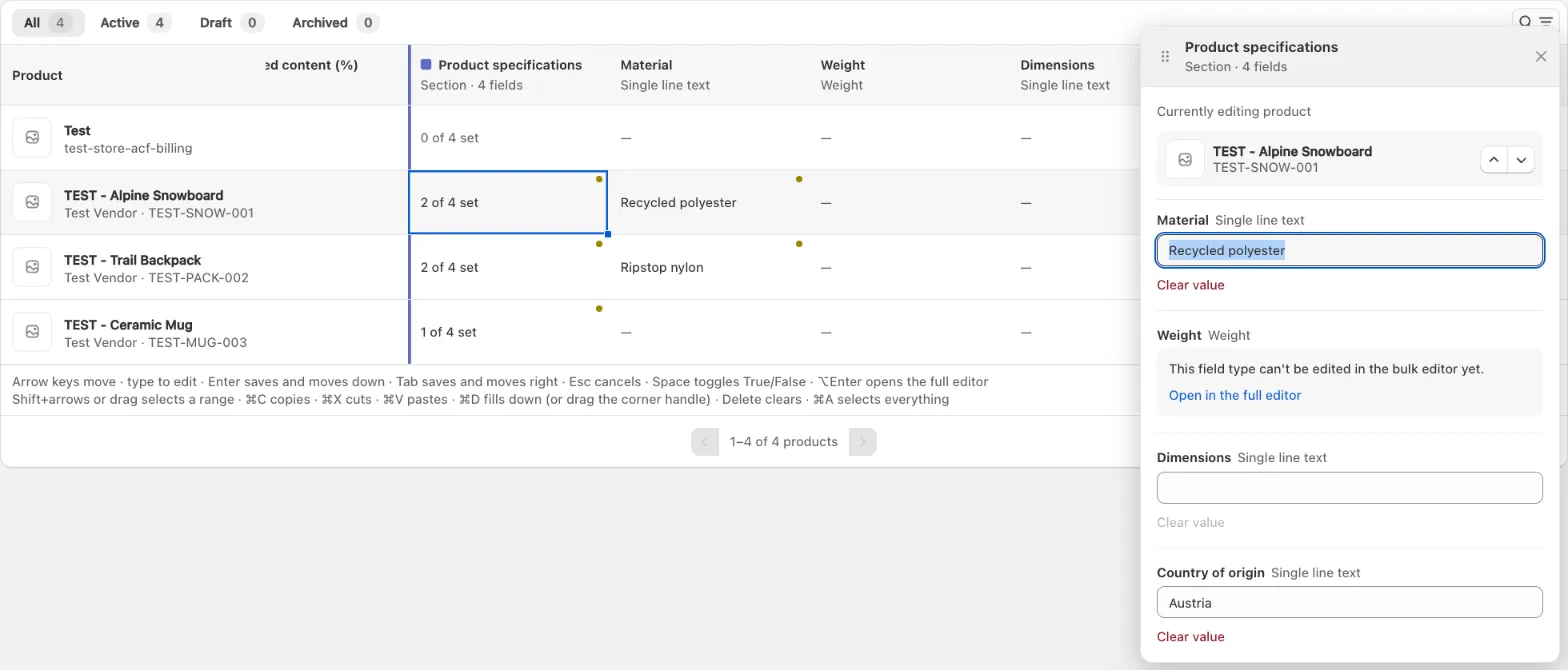
You can drag the panel anywhere on the screen by its title bar so it doesn’t cover the cells you’re working on. On small screens it docks to the bottom of the screen instead. Press Esc, or click the close button, to put it away.
Picking references
Section titled “Picking references”Reference fields (products, collections, variants, pages, blog posts, files, metaobjects and more) use a searchable picker. You can:
- search for items by name,
- use Select all or Deselect all to change every item in the current search result at once,
- click Done to confirm, or Cancel to leave the value unchanged.
Selected items are shown with their title and image, both in the panel and in the grid.
Images and media
Section titled “Images and media”For Accentuate’s own Image and Media fields, the panel lets you add, replace and remove files, and edit each file’s alt text.
Opening a product elsewhere
Section titled “Opening a product elsewhere”- In Shopify: click a product’s image in the first column to open Shopify’s own product editor on top of the Bulk Editor. When you save there, the row refreshes to show your changes.
- In the full Accentuate editor: for a field that can’t be edited in the Bulk Editor, the panel shows This field type can’t be edited in the bulk editor yet with an Open in the full editor link. This opens the product in Accentuate’s regular editor. If you have unsaved changes in the Bulk Editor, you’re asked to confirm before leaving.
Editing many cells at once
Section titled “Editing many cells at once”The Bulk Editor supports the spreadsheet shortcuts you probably already use.
Selecting a range
Section titled “Selecting a range”- Click and drag across cells, or hold Shift and use the arrow keys.
- Ctrl + A (⌘ + A on Mac) selects every cell on the page.
- Ctrl + arrow key (⌘ + arrow on Mac) jumps to the edge of the grid.
Copy, cut and paste
Section titled “Copy, cut and paste”| Action | Windows | Mac |
|---|---|---|
| Copy | Ctrl + C | ⌘ + C |
| Cut | Ctrl + X | ⌘ + X |
| Paste | Ctrl + V | ⌘ + V |
Paste follows the same rules as a spreadsheet:
- One cell copied, many cells selected: the value is pasted into every selected cell. This is the quickest way to give many products the same value.
- A block copied, a larger area selected: if the area is an exact multiple of the block, the block is repeated to fill it. For example, copy one row and select four rows to paste that row four times.
- Anything else: the block is pasted starting at the top-left selected cell.
Working with Excel and Google Sheets: you can copy a range from the Bulk Editor and paste it into a spreadsheet, or copy from a spreadsheet and paste it into the grid. Values are converted to the right format for each column. For example, yes, no, true, false, 1 and 0 all work for true/false fields, and selection fields accept either the stored value or the label you see.
After a paste, a short message tells you what happened, for example Pasted 36 value(s) · 2 skipped. Cells are skipped rather than filled with something wrong when:
- the pasted text doesn’t fit the column (for example, text pasted into a number field), or
- the column doesn’t accept pasted values (for example, image and media fields).
A paste never spills onto the next page. Anything that runs past the last row or column is left out, and the message tells you how many values didn’t fit on this page.
Fill down
Section titled “Fill down”To copy the top value(s) of a selection to the rows below:
- press Ctrl + D (⌘ + D on Mac), or
- drag the small handle in the corner of the selection down over the rows you want to fill.
Clear values
Section titled “Clear values”Select one or more cells and press Delete or Backspace to clear them. Clearing a value removes the metafield from the product when you save. It doesn’t store an empty value.
Step 4: Save your changes
Section titled “Step 4: Save your changes”As soon as you make a change, the save bar appears at the top of the Shopify admin.
- Save sends all of your changes to Shopify, including those on other pages of results.
- Discard throws away every unsaved change and restores the saved values.

For large saves, a progress message appears (for example Saving 40 of 120…). When the save finishes, a confirmation such as Saved 120 change(s) appears.
Values are checked before they’re saved
Section titled “Values are checked before they’re saved”When you click Save, every changed value is checked against its metafield definition. This includes:
- minimum and maximum values,
- minimum and maximum length,
- required formats (patterns),
- whole numbers vs. decimals,
- valid URLs, hex colors, dates and JSON,
- allowed choices for selection fields.
The values aren’t checked while you type. This means values you type, paste or fill are all checked the same way, at the same moment.
When something can’t be saved
Section titled “When something can’t be saved”If some values don’t pass the checks, or Shopify rejects them, the Bulk Editor saves everything that is valid and keeps the rest for you to fix:
- Cells that couldn’t be saved are highlighted in red. Hover over one to see why.
- The editor panel opens on the first problem cell, with the reason shown under the field.
- For each problem, you can either:
- correct the value, which clears the error, or
- click Discard this change to drop just that change and keep what’s already saved in your store.
- Use Next error to move to the next problem. The panel shows your position, for example Error 2 of 5.
While there are unresolved errors, Save is turned off. This stops the same invalid values from being sent again. After every error is fixed or discarded, you can save again.
A message such as Saved 118 · 2 failed summarises the result.
What happens when you save
Section titled “What happens when you save”Saving in the Bulk Editor works the same way as saving a product in the full Accentuate editor:
- Version history is recorded for every product you change.
- Shopify Flow triggers and auto-tagging run as they normally would.
- Clearing a value deletes the metafield instead of storing an empty value.
Supported field types
Section titled “Supported field types”| Field type | How you edit it |
|---|---|
| Single line text, Text, URL | Type in the grid |
| Multi-line text | Type in the grid (Shift + Enter for new lines) |
| Integer, Decimal, Number, Range | Type in the grid |
| Color | Type a hex code in the grid, or use the picker in the panel |
| Date | Type in the grid, or use the calendar in the panel |
| Date & time | Editor panel |
| Boolean, Checkbox (true/false) | Toggle in the grid with Space, or type T/F |
| Selection, Tags | Editor panel |
| Text fields set to Edit text field using HTML editor | Editor panel (visual editor) |
| Rich text | Editor panel (visual editor) |
| HTML | Editor panel (HTML source) |
| Markdown | Editor panel (with a formatting toolbar) |
| Custom JSON | Editor panel (checked for valid JSON) |
| Lists (text, color, URL, date, date & time, integer, decimal) and repeatable fields | Editor panel, as a list of values you can add to and remove from |
| References: product, collection, variant, page, blog post, blog, file, metaobject, mixed, media, global and resource | Editor panel, with a searchable picker |
| Image, Media (Accentuate upload fields) | Editor panel: upload, replace and remove files, and edit alt text |
| Money, Weight, Volume, Dimension, Rating | Shown in the grid, edited in the full editor |
| Menu (link list) references | Shown in the grid, edited in the full editor |
Keyboard shortcuts
Section titled “Keyboard shortcuts”Use ⌘ instead of Ctrl and Option instead of Alt on a Mac.
Moving around
Section titled “Moving around”| Keys | Action |
|---|---|
| Arrow keys | Move one cell |
| Ctrl + arrow key | Jump to the edge of the grid |
| Home / End | Go to the first / last column of the row |
| Ctrl + Home / Ctrl + End | Go to the first / last cell on the page |
Editing
Section titled “Editing”| Keys | Action |
|---|---|
| Any letter or number | Start typing a new value into the selected cell |
| Enter or F2 | Edit the selected cell (or open the panel if the field needs it) |
| Enter (while typing) | Confirm and move down |
| Tab (while typing) | Confirm and move right |
| Esc | Cancel typing, clear the selection, or close the panel |
| Space | Toggle a true/false field |
| Alt + Enter | Open the editor panel for the selected cell |
| Delete / Backspace | Clear the selected cell(s) |
Selecting and bulk actions
Section titled “Selecting and bulk actions”| Keys | Action |
|---|---|
| Shift + arrow keys | Extend the selection |
| Ctrl + A | Select every cell on the page |
| Ctrl + C / Ctrl + X / Ctrl + V | Copy / cut / paste |
| Ctrl + D | Fill down |
How the Bulk Editor improves your workflow
Section titled “How the Bulk Editor improves your workflow”Better data quality
Section titled “Better data quality”- See the gaps. Viewing a metafield across your whole catalog shows which products are missing a value, which are inconsistent, and which still have old content.
- Fewer mistakes. Every value is checked against the same rules as your metafield definitions before it’s saved, so bad data doesn’t reach your storefront.
- Nothing is lost. Failed values stay in the grid for you to fix, instead of disappearing. Saved values are recorded in version history, as with any other edit in Accentuate.
- Consistent values. Paste and fill down give many products exactly the same value, with no retyping and no typos.
Faster work
Section titled “Faster work”- Fewer clicks. Type straight into cells and move with the keyboard, instead of opening each product.
- One save for everything. Edit across as many products and pages as you need, then save once.
- No export/import round-trip. Copy between the Bulk Editor and your spreadsheet directly.
- Focused views. Filters and column selection show just the products and fields that matter for the task in hand.
Example workflows
Section titled “Example workflows”Fill in a new field for a whole brand
- Filter by Vendor.
- In Select metafields, pick the new field.
- Type the value in the first row, select the column down to the last row, and press Ctrl + D.
- Click Save.
Update content prepared in a spreadsheet
- Filter to the products in the same order as your spreadsheet (for example, by collection).
- Copy the column(s) from Excel or Google Sheets.
- Click the first cell in the Bulk Editor and paste.
- Check the highlighted cells, then Save.
Audit and clean up a field
- Show only the field you’re reviewing.
- Scroll down the column to find empty or incorrect values.
- Fix them in place, or select several and press Delete to clear them.
- Click Save, then fix anything that’s flagged.
Good to know
Section titled “Good to know”- Products only. The Bulk Editor currently supports product metafields.
- 50 products per page. Pasting and fill down work within the current page. Unsaved edits on other pages are kept and saved together.
- Tab counts cover your whole store. The numbers on the status tabs don’t change when you search or filter.
- File uploads are immediate. Adding, replacing or removing an image or media file is saved straight away. Alt text follows the normal Save/Discard flow.
- Column choice is per browser. Your selected metafields are remembered in the browser you use, not across devices.
- Last save wins. If someone else edits the same product at the same time, whichever change is saved last is kept. Version history keeps a record of both.
- Not available as columns:
- multi-language fields,
- repeatable sections (and the fields inside them),
- fields set to Automatically handle large sets of repeatable values.
- View-only in the Bulk Editor (edit them in the full editor):
- Money, Weight, Volume, Dimension and Rating fields,
- Menu (link list) references,
- repeatable Image and Media fields.
Frequently asked questions
Section titled “Frequently asked questions”Do I need to save before moving to the next page of products? No. Unsaved edits stay in place when you change pages, search or filters. One Save covers all of them.
What happens if I close the tab with unsaved changes? Unsaved changes are lost. Save before you leave the page. If you open the full editor from the panel with unsaved changes, you’re asked to confirm first.
I cleared a value. Why doesn’t the product have an empty metafield? Clearing a value removes the metafield from the product. This is the same as clearing it in the full editor or through an import.
Why was part of my paste skipped? A pasted value is skipped when it doesn’t fit the column’s type, or when the column doesn’t accept pasted values (such as image and media fields). Values that run past the last row on the page are left out too. The message after the paste tells you how many were skipped and how many didn’t fit.
Why is the Save button disabled? A previous save left some values that couldn’t be saved. Fix each highlighted cell, or click Discard this change on it, and Save turns back on. Use Next error in the panel to move between them.
Why can’t I see one of my metafields? It may be hidden by your column selection. Open Select metafields and check that it’s ticked. If it’s greyed out, that field type isn’t supported as a column yet (see Good to know).
Can I undo a save? Every saved change is recorded in the product’s version history, so you can review and restore earlier values from the full editor.